Register for ESS Lite

Enter your details

When you register, you will be presented with the following screen and then asked to enter these details. If you do not know your personnel number, ask your manager they will be able to assist you with this information.
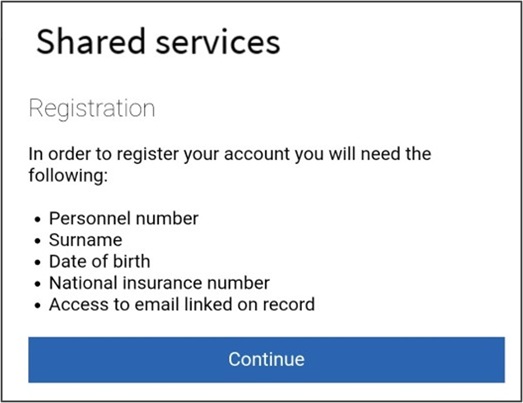
A visual indication of the registration step

Authentication

If the personal details you have entered are correct and there is an email address on your record, a one-time passcode (OTP) will be sent to each email address held. You must then enter the OTP to continue to the final page.

The OTP will time out after 20 minutes – if the OTP has not been used within this time, you will need to start the registration process again and request a new OTP. If you do not receive your OTP, you should:

  1. Check your spam and junk folders
  2. Retry the registration process
  3. Confirm with your manager, that you have an email address on your employee record

The Manager can check your details using ‘My Team’ on the IBC Portal to confirm whether an email address is maintained, or not.

If you do not have an email address on your record, your manager can add this using the ‘Manage Personal email address’ app.

Please note that updates will appear on your account the next working day, so you will need to wait until then before attempting to re-register.

Also be aware that this app cannot be used to amend employee's emails when payroll is closed.
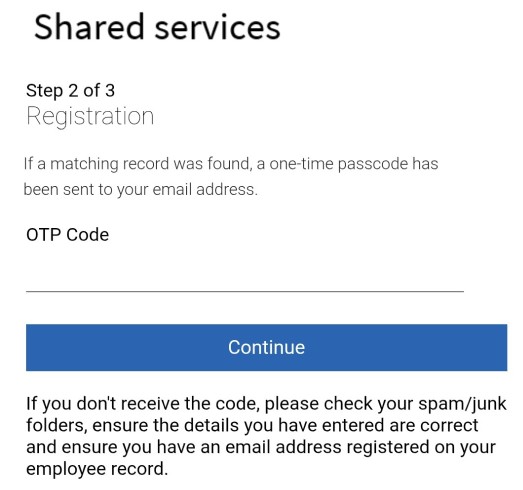
A visual indication of step 2

Set up a password and authentication method

Enter a password which matches the requirements displayed on the screen and re-enter the same password to confirm. The password must be a minimum of 15 characters and cannot be the same as your memorable word. The advice given is to make a password out of three random words. Once completed, please read the terms of use and press the tick box to accept terms of use.

Once you have entered your password and selected Continue, you will be asked to set up an authentication method.

Multi-factor authentication

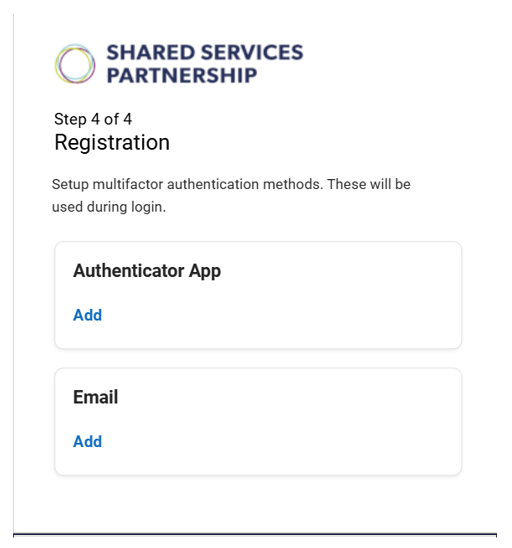
Setting up multi-factor authentication to your ESS account is a required step to keep your information secure as it protects your account from unauthorised access. Once multi-factor authentication is set up, this will be required to verify your identity each time you log in to your ESS account on a personal device. This can be by either be an Authenticator app, an email address, or you can set up both.

Screen shot of choosing an authentication method during registration

Authenticator app

To use an authenticator app, you will need to download a free app from the Google Play or Apple Store on your mobile phone. The recommended app is Microsoft Authenticator.

Once you have downloaded the app, open it and press Add Account (the plus icon at the top right-hand side of the screen).

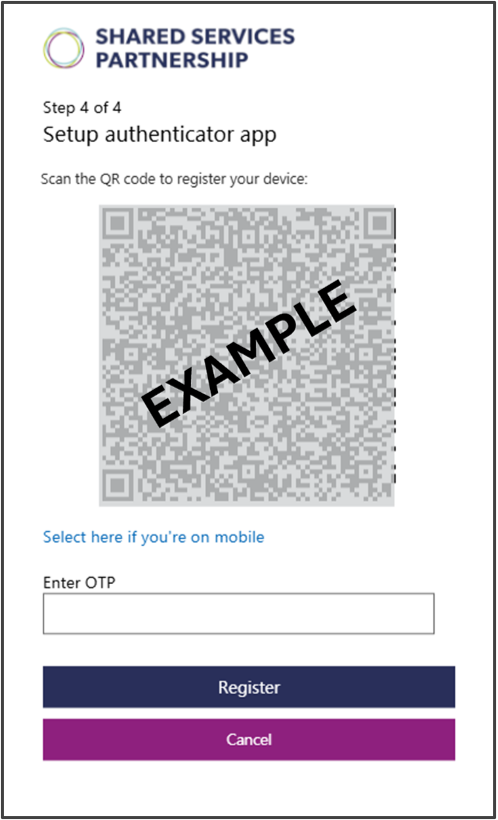
Screenshot of setting up an authenticator app during registration

Press the authenticator app option and scan the QR code displayed on the screen. The app will then display a 6-digit one-time passcode (OTP) which must be entered into the OTP field on the screen. This OTP code will expire within 30 seconds, and a new code will be generated.

If you are registering for an ESS account on your mobile device, you will need to click the link underneath the QR code.

Email address authentication

To use your email address as an authentication method, click on the Add button underneath email. Any email addresses maintained on your record (work or personal) will be displayed and you will be able to select your preferred one to use. If you only have one email address maintained on your record, this will be displayed as a reminder.

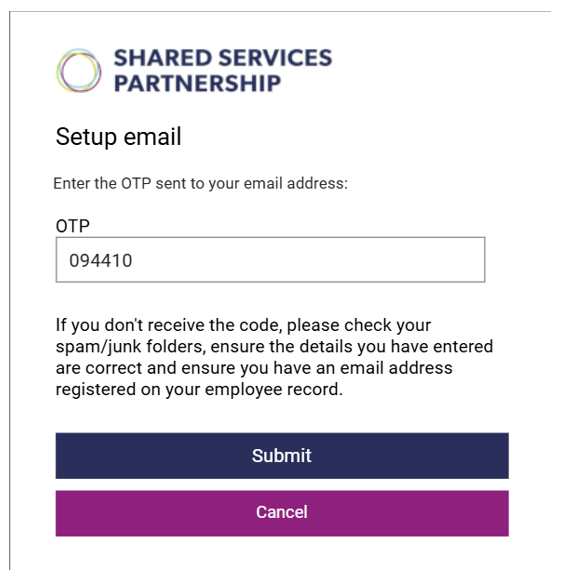
The OTP code will be sent to your email address and will need to be entered into the OTP field on the screen. The OTP will time out after 20 minutes – if the OTP has not been used within this time, you will need to start the registration or resetting process again and request a new OTP.

If you do not receive the code to the selected email address, you should check your spam/ junk folders.

Screenshot of entering an OTP during registration

Once an authentication method has been added to your ESS account, you will receive an email to all email addresses held on your record confirming the change. If the change was not made by you, use the link in the email to webchat with Shared Services via webchat as soon as possible.

Accept terms and conditions

You will see an acceptance of use message at the bottom of the page. Press to tick the box next to "I agree to the above terms of use" then press Register.

The Registration screen will open confirming your account has been successfully registered. Close the web page by pressing X in the top right corner.